.svg)
Control who can enter your 360Alumni community by reviewing new accounts and assigning the right access level. This is especially important in closed communities that use preloaded member records to streamline validation and control access.
Set up approval for new accounts
Most organizations use a closed community and require administrator approval before a new account receives access.
- Go to Admin > Customize > Features.
- Turn on the setting that requires approval for new users.
- Specify the administrator who should receive notifications when a new account is created.
- Review the available settings for Limited Access users or Guests so you understand which alumni engagement tools they can use, including messaging and the alumni directory, .
The administrator who receives new-account notifications should also be responsible for reviewing Pending accounts and assigning access.
Understand profile statuses and access roles
Every profile has a status and an access role. Following are statuses and roles for closed communities.
Profile statuses
- Unactivated: The preloaded profile has not been claimed. The person must activate the profile using the exact email address on the record and accept the terms and conditions.
- Active: The person has activated their profile and accepted the terms and conditions. This does not indicate whether they have logged in recently (that can be seen by displaying "Last Login" as a field in a user table).
- Deactivated: The profile has been turned off and can no longer be used to log in.
- Pending: A new profile has been created but has not yet been reviewed by an administrator or assigned Full Access or Limited Access.
Access roles
- Full Access users: Members with full access to your community.
- Limited Access users or Guests: Members whose access is limited based on the feature settings you configure.
Review Pending accounts
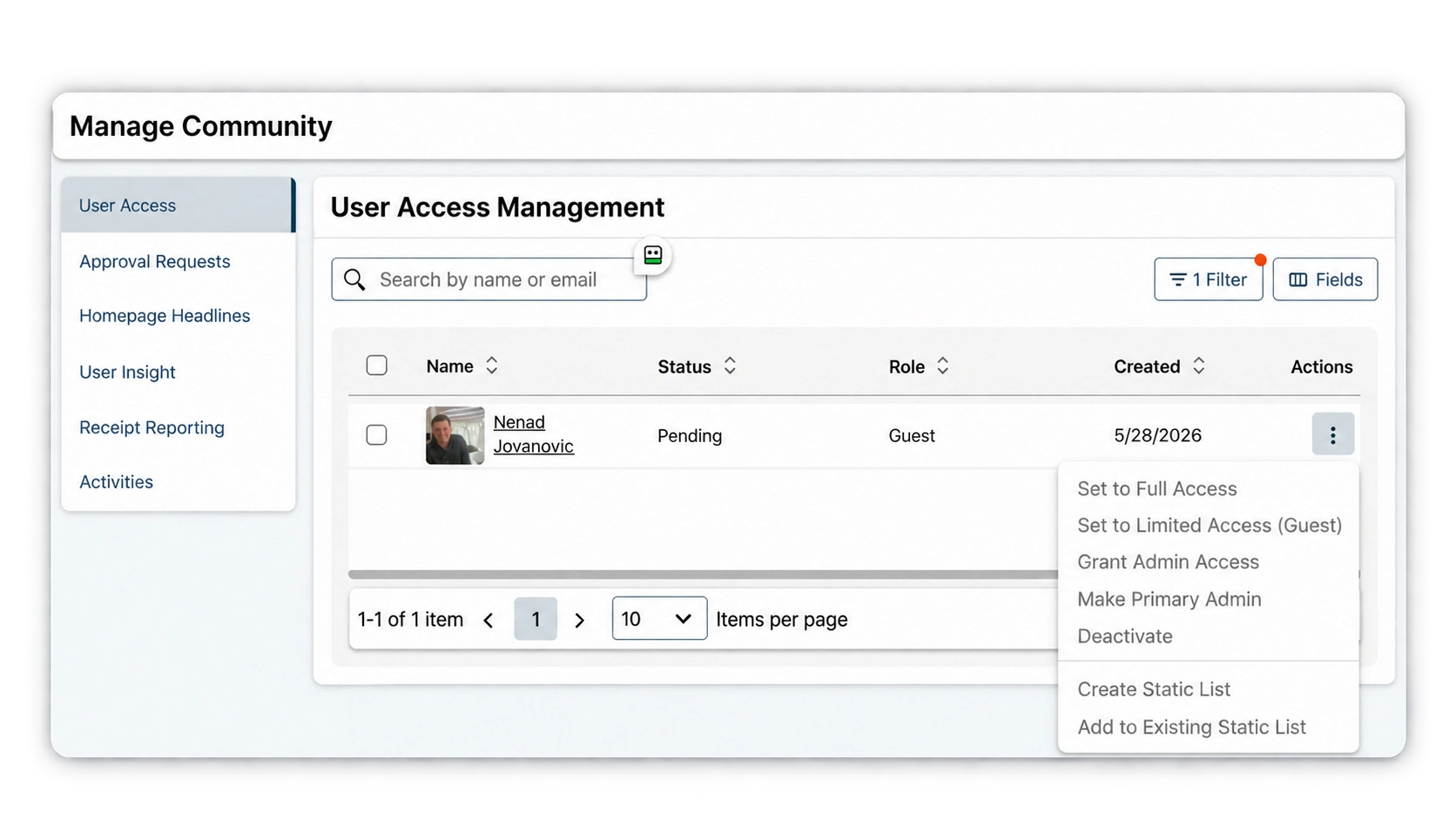
Use User Access to find and review accounts that need a decision.
- Go to Admin > Manage Community > User Access.
- Configure the table so Role and Status are the first two columns.
- Filter the list where Status is Pending.
- Review each profile before assigning access.
- If you recognize the person, open the more options menu and set them to Full Access or Limited Access.
- Select Deactivate if the profile's owner should not be able to access the community.
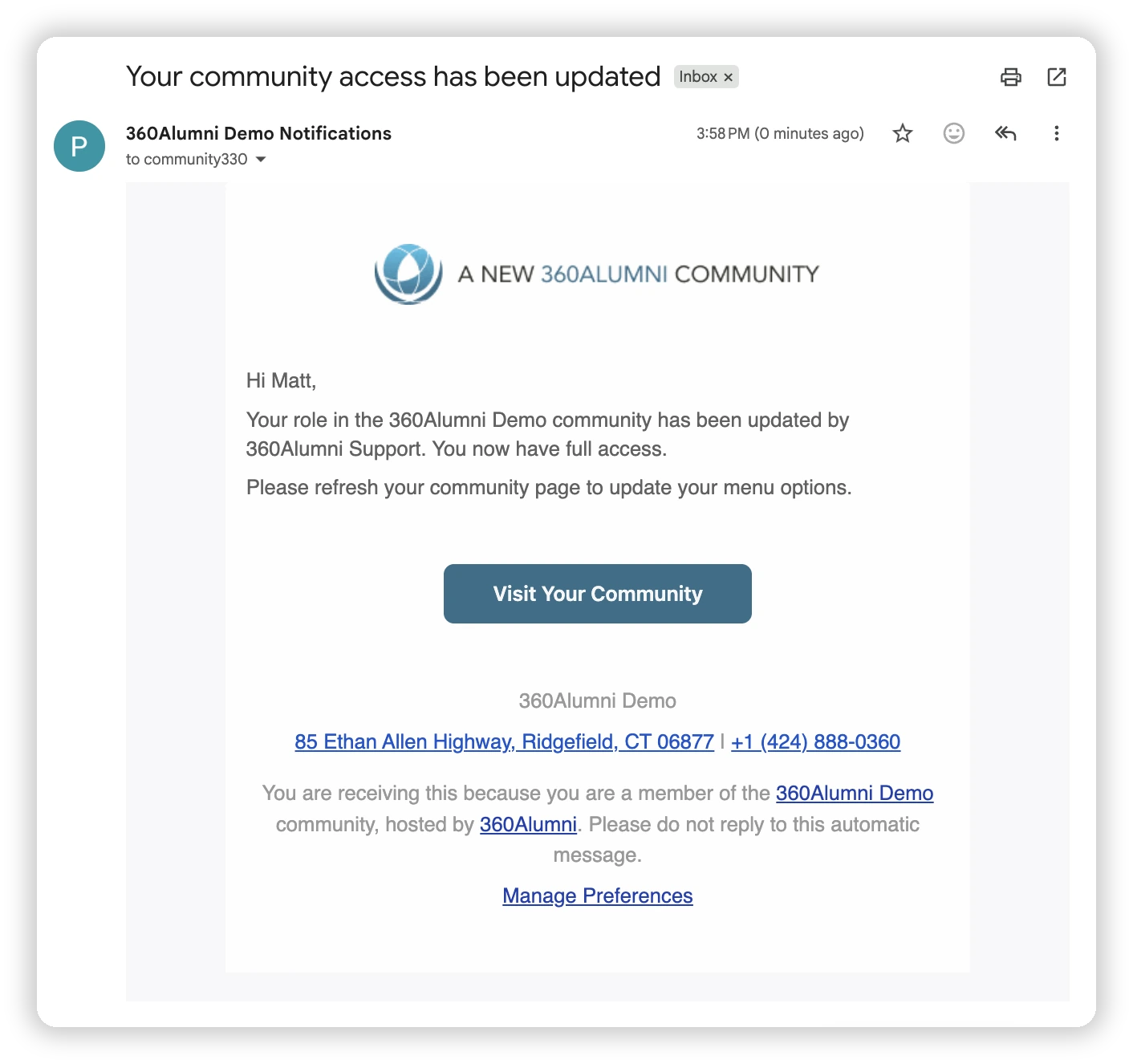
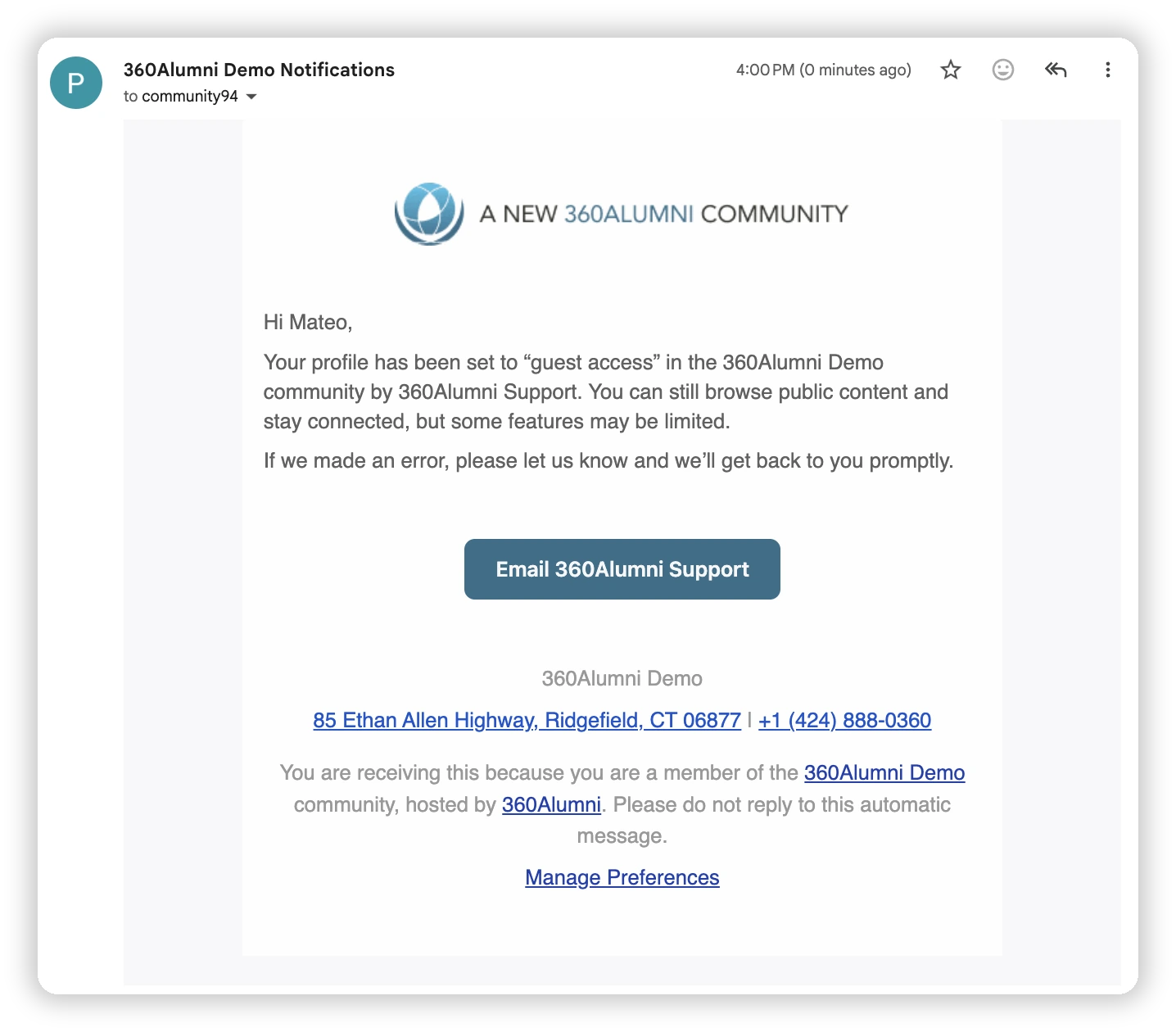
When you change a user's access level, you can choose to send them a notification. When they are a pending (new) user and given full access, they get a welcoming message. If they are an established user and you change their role, they will receive a more informational email:
Users are not notified when you deactivate their profile.
Check for duplicate profiles when approving access
A preloaded record is approved for Full Access as soon as the person activates it with the exact email address on that record. However, a valid member may create a profile with a different email address, or may need to create a new profile because their preloaded record did not include an email address.
Before approving a new profile, verify the person's identity. It's also important to check whether they already have a preloaded record so that you can keep your alumni database clean.
- Open the Pending profile in a new tab to review the information the person provided.
- Use Quick Search, available from the magnifying glass in the top-right corner, to search for an existing profile.
- If you find a possible duplicate, confirm that both profiles belong to the same person.
- From either profile, in the Admin section in the profile's sidebar click Manage > Merge Profile.
- On the merge page, search for and select the other profile to merge.
Merging keeps your alumni CRM records cleaner and helps ensure members retain the correct access to your community.
Related articles
- Types of roles in 360Alumni
- Configuring features & welcome messages
- Importing alumni data into your 360Alumni community
- Merging profiles in 360Alumni