.svg)
Use Email Marketing to create and send campaigns to anyone. You can build the email, preview it, send a test, review your audience, and track results after delivery.
Create a campaign
- Go to Email Marketing in the main navigation.
- Select Create Campaign.
- Select the pencil icon next to Untitled Campaign.
- In the campaign details drawer, enter:
- Campaign name
- From name
- Subject line
- Pre-header text
- Save your changes.
The From name appears prominently in recipients' inboxes. Campaigns are sent from the 360Alumni.com domain.
Choose your audience
You can send a campaign to a 360Alumni list or to any contact list that you upload.
Send to a 360Alumni list
- In the audience section, select "Use one or more 360Alumni lists".
- Type the name of a Static List or Smart List in the "Search audience lists..." field below it.
Static Lists are useful for a fixed group of recipients. Smart Lists update automatically based on the criteria you set, which can help you target your alumni database management efforts without rebuilding the audience each time.
Upload a contact list
If you would like to send your campaign to recipients who are not yet in your member community, or to a combination of community members and external email addresses, you can upload one or more contact lists.
- Create your contact file with any of these columns:
- First name
- Last name
- Email address
- Save the file as CSV UTF-8.
- Make sure the file is no larger than 2 MB.
- Upload the file in the audience section.
Email addresses are validated before the contacts are imported.
Note: At this time admins can not send one campaign to both uploaded contact lists and 360Alumni static or smart lists. You can send to one or more 360Alumni Smart or Static lists list, then duplicate the campaign to send to an uploaded list. Or you can export your 360Alumni lists and combine them with your non-360Alumni contacts.
Compose your email
- Enter or update the subject line.
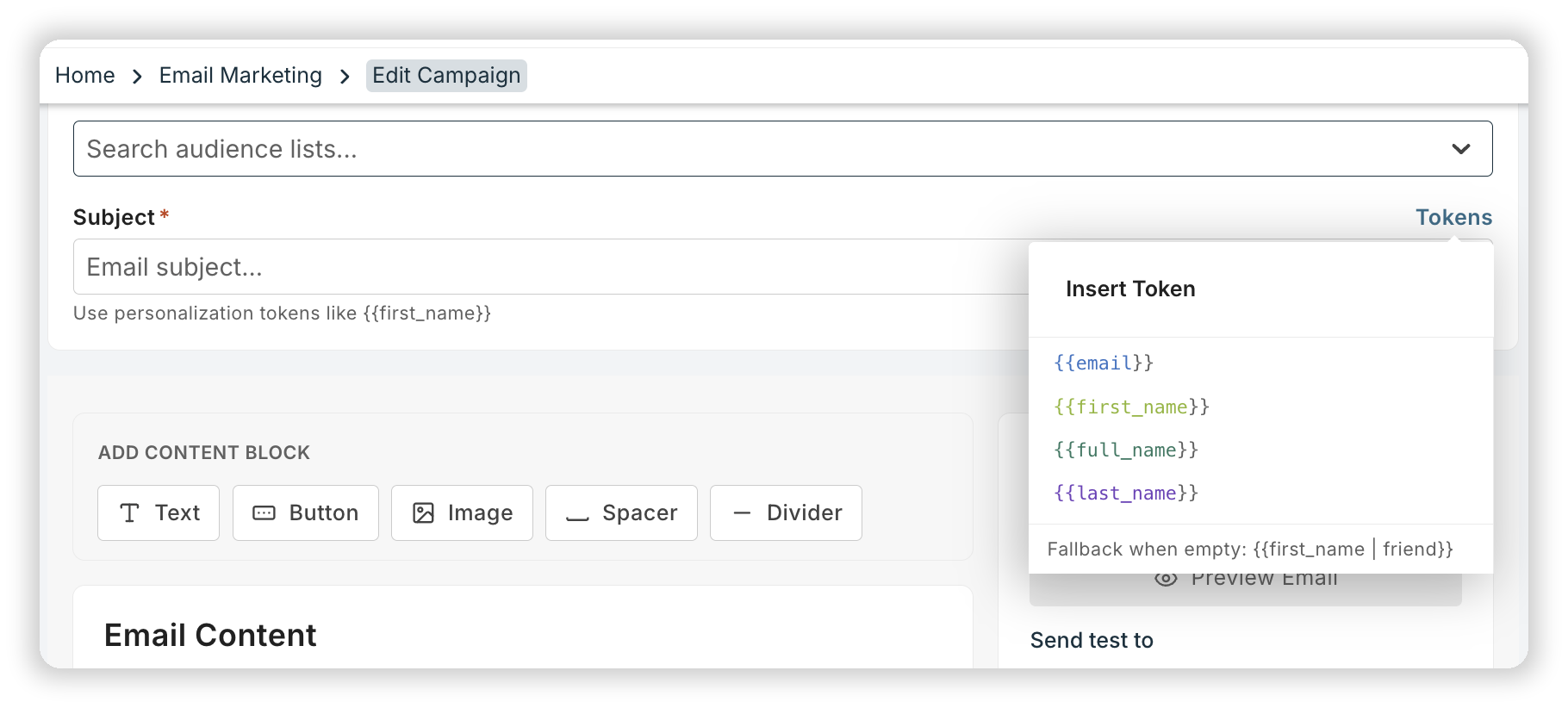
- Click a content block to add it to the Email Content window. Available blocks include text, buttons, images, spacers and dividers.
- Click inside a block to open and edit its settings.
- Use Tokens to personalize subjects, text blocks or Buttons with first name, last name, or email address.
Insert an activation button
When sending a campaign to 360Alumni users who have not activated their account, you can create an Account Activation button. Insert a Button, select Link type: Activate Account and apply a button label.
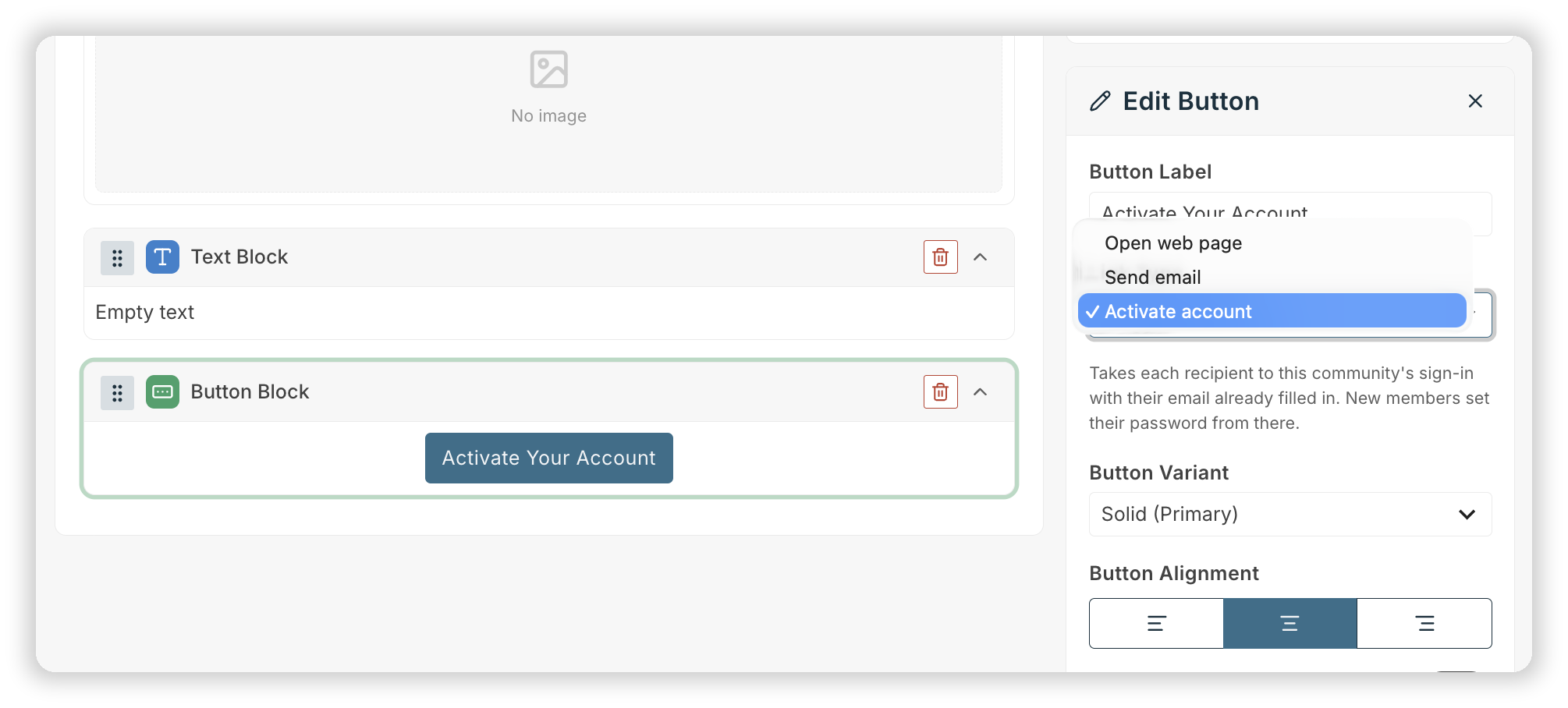
The account activation button will take the user straight to their own login page. They will simply need to click Set/Reset password, set their password, then log in.
Do not send an activation button to an uploaded contact list, as they do not have a 360Alumni account.
Preview and test your campaign
Before sending, click "Preview Email" to see the campaign in browser and mobile formats.
Send a test to yourself or add other recipients, separated by commas.
Review and send your campaign
- When the campaign is ready, select Review Campaign.
- Review the calculated audience totals, including:
- Total people in the selected audience
- Contacts with an email address
- Deliverable contacts, based on prior sending history
- When you are ready to deliver the email, select Send Campaign.
Emails are processed at approximately 3,500 per hour. Usually processed messages are confirmed as Delivered (meaning the recipient’s mail server has accepted it) within a few minutes. Occasionally a recipient’s server will temporarily refuse or delay acceptance. We will retry delivery for up to 72 hours.
Review campaign results
After a campaign has been sent, you can view its delivery and engagement report. Note that metrics will continue to change as more recipients receive, open, click or unsubscribe over the hours and days.
- Go to Email Marketing > Sent.
- Find the campaign.
- Select the more options menu (⋮) next to it.
- Select View report.
The report includes campaign details and totals for each audience sent to. You can review:
- Emails triggered
- Emails accepted
- Unique opens and open rate
- Unique clicks and click rate
- Bounces and bounce rate
- Unsubscribes and unsubscribe rate
Most metrics can be drilled down into to view an exportable list of the related contacts. This can help you understand how your Email Marketing campaigns are performing and refine future outreach.
Related articles
- Creating dynamic member lists in 360Alumni
- Messaging Users in 360Alumni
- Approvals for user generated content and bulk messages
- Member engagement analytics & reporting in 360Alumni